

Renaming a large number of files sequentially

EdwardB

Well-known member
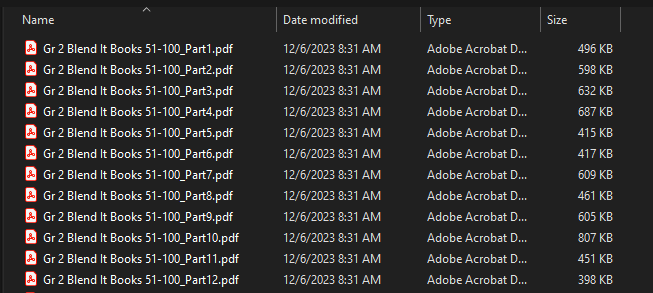
We have a large number of files that we need to re-name to make them logical for production. The individual files were named "Part 1", "Part 2"... instead of "Book 51", "Book 52", so on and so forth. We have 4 sets of books, totaling 188 different books. I really don't want to have to manually re-name each PDF, I'm hoping someone knows of something that will simplify it
1757617075663.png
 
If you're using a Mac, you can right click and use the Rename feature to accomplish what you are looking to do. On a PC, I have used the Microsoft PowerRename (PowerToys) utility for batch renaming files.
 
If you're using a Mac, you can right click and use the Rename feature to accomplish what you are looking to do. On a PC, I have used the Microsoft PowerRename (PowerToys) utility for batch renaming files.
omg... PowerToys, I haven't used them since probably the Windows XP days...

well, it works... they baked in a hard limit of 20 files at a time, but it's better than my happy-butt re-naming them one. at. a. time.
 
@EdwardB If I remember correctly, I had shown you a few other, way more sophisticated videos as well.
Your question above is fairly straight forward. Video in link shows Rename with Placeholder and dynamic Counter.
You are welcome to have trial version of PDFMagick. This was just one of 400+ functions for anything that a digital print provider may need.
Best Regards,

 
  • Like
Reactions: bcr
If you're using a Mac, you can right click and use the Rename feature to accomplish what you are looking to do. On a PC, I have used the Microsoft PowerRename (PowerToys) utility for batch renaming files.
I've been using a Mac since OS 6. I never thought we could do that. That is great!! But I have been using Name Mangler for quite a few years for renaming on the Mac.

But the new cool thing I like about the newer OS, is the ability to 'Convert Image' and 'Remove Background' quick actions.
 
On a PC, you can do the following:
  1. Select all (Ctrl + A)
  2. Right click on the first file
  3. Type in the file name without the number at the end: "Gr 2 Blend It Book"
  4. Press ENTER.....Windows will automatically add sequential numbers to the end of each file
 
omg... PowerToys, I haven't used them since probably the Windows XP days...

well, it works... they baked in a hard limit of 20 files at a time, but it's better than my happy-butt re-naming them one. at. a. time.

I'm not seeing anything that confirms a limit of 20 at a time. I just did a test and renamed 49 items. Then I copy pasted them 3 times and renamed them again, for a total of 154 items. Worked flawlessly.
Perhaps you're on an older version, only had 20 files selected, or some other limitation/difference?

The new finder rename functionality is great, but if you can't get around that limit you're encountering - I recommend using Automator. It's what I've used in the past for this task, and allows for a fantastic amount of control over what happens with your renames. Here's a nice article describing how to set it up: Automator Can Rename Files and Folders on Your Mac
 

This product is brilliant.

You can even use it to import the filenames into a spreadsheet, change them in the spreadsheet as required, and then import the updated names into it. You can do that as well just with Excel with a macro, but Renamer makes the whole process very easy and adds preview and logging capability to see whether anything is failing.
 
Rename X on the mac by Pathos Software - super serious.
This is the main screen - drag n drop as many files as you want to process. :cool:
1757971455881.png
 
I'm not seeing anything that confirms a limit of 20 at a time. I just did a test and renamed 49 items. Then I copy pasted them 3 times and renamed them again, for a total of 154 items. Worked flawlessly.
Perhaps you're on an older version, only had 20 files selected, or some other limitation/difference?

The new finder rename functionality is great, but if you can't get around that limit you're encountering - I recommend using Automator. It's what I've used in the past for this task, and allows for a fantastic amount of control over what happens with your renames. Here's a nice article describing how to set it up: Automator Can Rename Files and Folders on Your Mac
I never followed back up... if you go into the settings editor for the applet, it isn't "file limit 20", its an "autocomplete limit"?
 
I never followed back up... if you go into the settings editor for the applet, it isn't "file limit 20", its an "autocomplete limit"?
You are talking about selecting multiple items in finder, right clicking them, and selecting "Rename...", right?

There is no applet or settings that I am aware of for this, and the Apple help page on the feature also does not mention any applet or settings. When I google things like "macOS rename autocomplete limit" I see nothing relevant.

I think we might be talking about two different things. If you were talking about Powertoys, I apologize for missing context. My advice was specifically about MacOS Finder.
 
You are talking about selecting multiple items in finder, right clicking them, and selecting "Rename...", right?

There is no applet or settings that I am aware of for this, and the Apple help page on the feature also does not mention any applet or settings. When I google things like "macOS rename autocomplete limit" I see nothing relevant.

I think we might be talking about two different things. If you were talking about Powertoys, I apologize for missing context. My advice was specifically about MacOS Finder.
Microsoft PowerRename
 
Microsoft PowerRename
okay that was definitely my confusion. Your screenshot looked like a MacOS finder, and the original reply to your post said "if you're on a mac...." and gave mac specific advice. You replied that you haven't used PC version of these tools in a long time, so it read to me like you're following the Mac instructions. Definitely an exercise in why communication and clarification (both ways) is very important :P
 
   
Back
Top