


Jason Lu
New member
Have you ever printed important documents or photos, only to find annoying colored lines, streaks, missing color patches or smudged trails on the paper? This common issue can be really frustrating, especially when you are in a hurry.
Don’t worry. Color print defects are among the most frequent printer malfunctions, and most of them can be fixed with simple troubleshooting. This guide explains the causes and solutions in plain language, suitable for both color laser printers and inkjet printers.
Vertical lines usually occur when:
Horizontal stripes at fixed intervals are mainly caused by:
Don’t worry. Color print defects are among the most frequent printer malfunctions, and most of them can be fixed with simple troubleshooting. This guide explains the causes and solutions in plain language, suitable for both color laser printers and inkjet printers.
First: Identify Your Print Defect
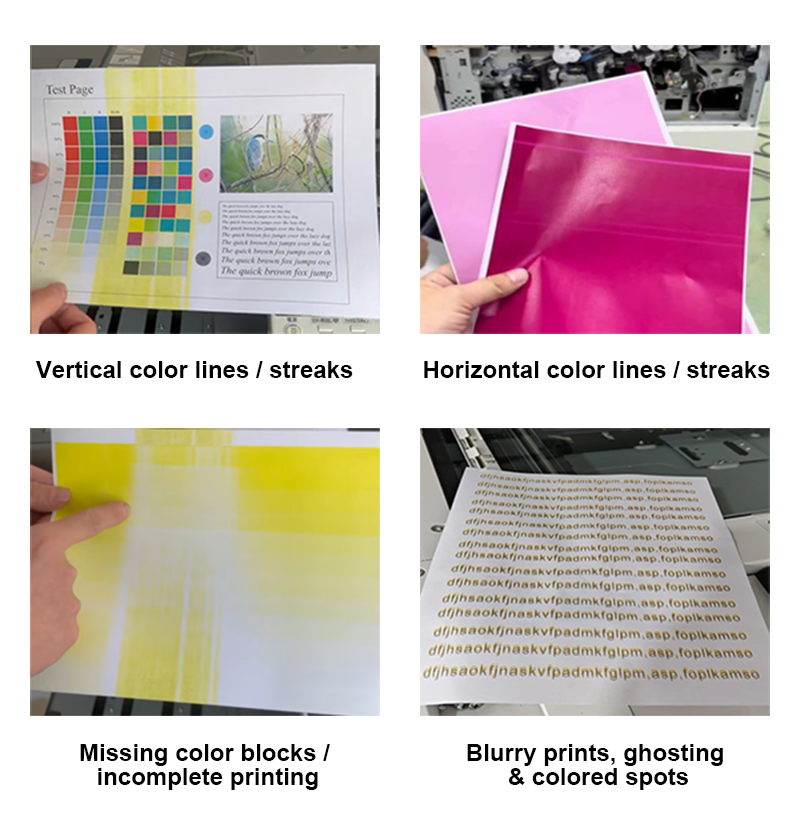
Different types of lines point to different faults. Check the table below to match your problem and jump to the corresponding solution directly.| Defect Type | Typical Appearance |
|---|---|
| Vertical color lines / streaks | Solid colored vertical stripes running from top to bottom along the paper feed direction |
| Horizontal color lines / streaks | Colored horizontal stripes across the page, usually appearing at fixed intervals |
| Missing color blocks / incomplete printing | Certain colored areas fail to print properly, either in fixed positions or randomly |
| Blurry prints, ghosting & colored spots | Fuzzy color edges, double images, or random colored smudges and dots on the page` |
Fault 1: Vertical Color Lines / Vertical Streaks
Root Causes
In color laser printers, rubber feed rollers and the transfer belt work together to transfer toner onto paper. The transfer belt acts like a conveyor for colored toner.Vertical lines usually occur when:
- Excess toner, dust or dirt sticks to the paper feed rollers;
- The transfer belt is contaminated or scratched.
Step-by-Step Solutions
Safety Reminder: Turn off the printer power and let the device cool down before maintenance. Wear rubber gloves to avoid direct contact with toner, which may cause skin irritation.- Clean the feed rollers: Wipe the visible rubber rollers gently with a lint-free cloth. You can dampen the cloth with a small amount of isopropyl alcohol; clean water is also acceptable if alcohol is not available.
- Remove loose toner: Use a small vacuum cleaner with a narrow nozzle to suck up scattered toner inside the printer. Be careful not to touch delicate internal components.
- Clean the transfer belt (for compatible models): Wipe the belt surface lightly with a clean lint-free cloth. Never touch the transfer belt with bare hands, as oil from skin will lead to new print issues.
- Advanced solution: If the problem remains after cleaning, the feed rollers or transfer belt may be worn out and need to be replaced.
Fault 2: Horizontal Color Lines / Horizontal Streaks
The causes differ greatly between laser printers and inkjet printers. Please refer to the targeted guidance below.For Color Laser Printers
Root Causes
Each color in a laser printer is equipped with an independent drum unit. The cylindrical drum core transfers laser signals into toner images.Horizontal stripes at fixed intervals are mainly caused by:
- Scratches, dust or fingerprints on the OPC Drum;
- Wear and tear of the fuser assembly (the component that melts and fixes toner onto paper with heat).
Solutions
Safety Reminder: Do not touch the green OPC Drum with your hands. Skin grease will permanently damage the drum.- Replace the corresponding drum unit: If only one specific color shows horizontal lines, replace the matching Drum first. This is the most common fix for this issue.
- Check the fuser assembly: If replacing the drum unit does not work, the fuser may be damaged. Contact a professional technician for fuser film or full assembly replacement.
For Inkjet Printers
Root Causes
Over 90% of horizontal line issues on inkjet printers come from clogged print head nozzles. Dried ink blocks the tiny nozzles, resulting in broken lines or missing colors. A small number of cases are caused by misaligned print heads.Solutions
- Print a nozzle check page: Locate the Nozzle Check function in your printer settings and print a test page to confirm which color has broken lines.
- Run standard print head cleaning: Select the Head Cleaning function and run it 1 to 2 times, then print another nozzle check page. Do not run cleaning repeatedly, as it will waste ink.
- Deep cleaning for stubborn clogs: If standard cleaning fails, use the Deep Cleaning feature. For severe blockages, ask a professional to clear the nozzles with dedicated cleaning fluid.
- Align the print head: If the lines are caused by misalignment or double images, run the Print Head Alignment program.
Fault 3: Missing Color Blocks & Incomplete Printing
This issue means certain colored areas cannot be printed fully, or one entire color disappears from the page.Root Causes
Color Laser Printers
- Dirty or damaged drum unit: Stains and scratches on the drum core block laser beams, so toner cannot adhere to the paper.
- Dirty laser mirror: Dust on the laser reflecting mirror disrupts laser transmission.
- Fuser malfunction: Insufficient pressure or heat from the fuser makes toner unable to stick firmly, and the printed color fades or rubs off easily.
Inkjet Printers
- Empty ink or fully clogged nozzles: Running out of ink or completely blocked nozzles will make a certain color disappear.
- Paper feeding error: Slipping paper leads to offset printing and missing content.
Step-by-Step Solutions
Safety Reminder: Keep hands away from the drum core for laser printers.- Replace consumables first:
- Laser printers: Install a new toner cartridge or drum unit of the problematic color.
- Inkjet printers: Refill ink for continuous ink supply systems or replace empty cartridges.
- Clean the laser mirror (professional operation only): If replacing cartridges does not help, the laser mirror may be covered with dust. Do not disassemble the printer by yourself; seek professional cleaning service.
- Inspect the fuser assembly (laser printers): If toner rubs off the paper easily, the fuser is faulty and needs professional repair.
- Clean and align print heads (inkjet printers): Follow the steps in Fault 2 to clean and align the print head.
Fault 4: Blurry Prints, Ghosting & Random Colored Spots
Root Causes
- Fixed spots/stains: The drum core or fuser is contaminated with toner or dust, leaving marks on every page.
- Random spots: Toner leakage from the cartridge, damp or clumped toner (toner usually lasts 2 years in sealed packaging; please use it within 6 to 8 months after opening). For inkjet printers, the issue is usually caused by leaking cartridges.
- Color ghosting / trailing images: Laser printers mostly suffer from dirty transfer belt or faulty fuser; inkjet printers usually have misaligned print heads or improperly installed cartridges.
Step-by-Step Solutions
- Clean the paper path: Wipe the feed rollers and transfer belt following the methods mentioned in Fault 1 to remove toner stains.
- Replace defective consumables:
- Laser printers: Replace leaking cartridges and discard damp, clumped toner, Replace drum unit
- Perform automatic color calibration (Settings - Maintenance - Color Calibration).
- Inkjet printers: Replace leaking ink cartridges and check the sealing condition.
- Calibrate print heads (inkjet printers): Run print head alignment to fix ghosting issues.
- Further inspection: If all above methods fail, the fuser assembly is likely damaged and requires professional maintenance.
Final Solutions If the Problem Persists
If you have tried all the above steps and colored lines or print defects still exist, there may be serious hardware failures such as damaged main boards or laser units. Do not disassemble the printer privately.- Contact official after-sales support: If your printer is still under warranty, turn to the brand’s authorized service center.
- Find a local professional repair shop: Experienced technicians can diagnose and fix complex faults safely.
- Consider device replacement: If the printer has been used for many years and the repair cost is too high, replacing a new printer will be a more cost-effective choice.
Last edited by a moderator: